
1. Introduction
This tool simplifies the process, reducing the time and effort needed to plan time off while ensuring that approvals align with company policies and personal needs.
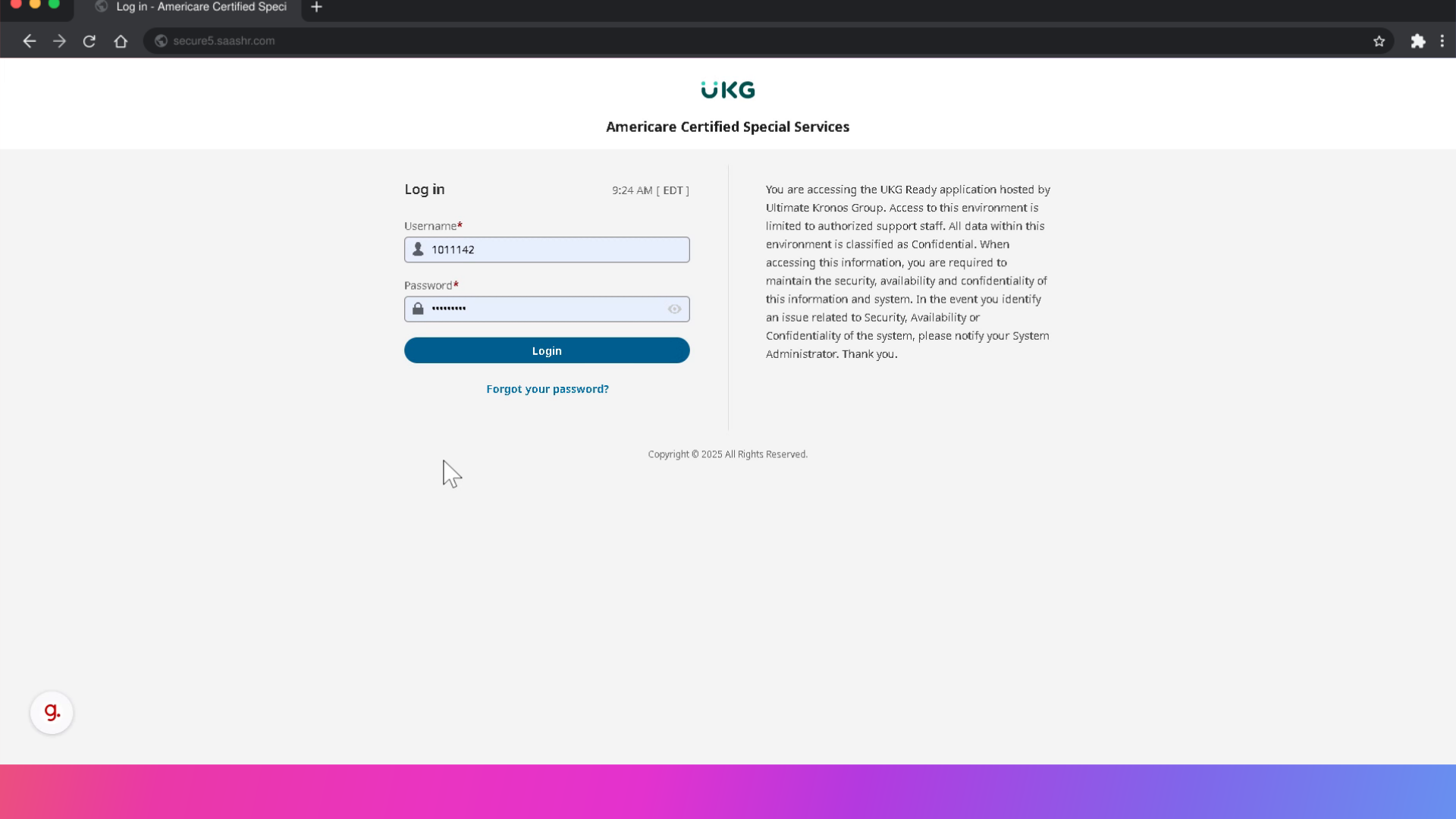
2. Login to UKG Ready
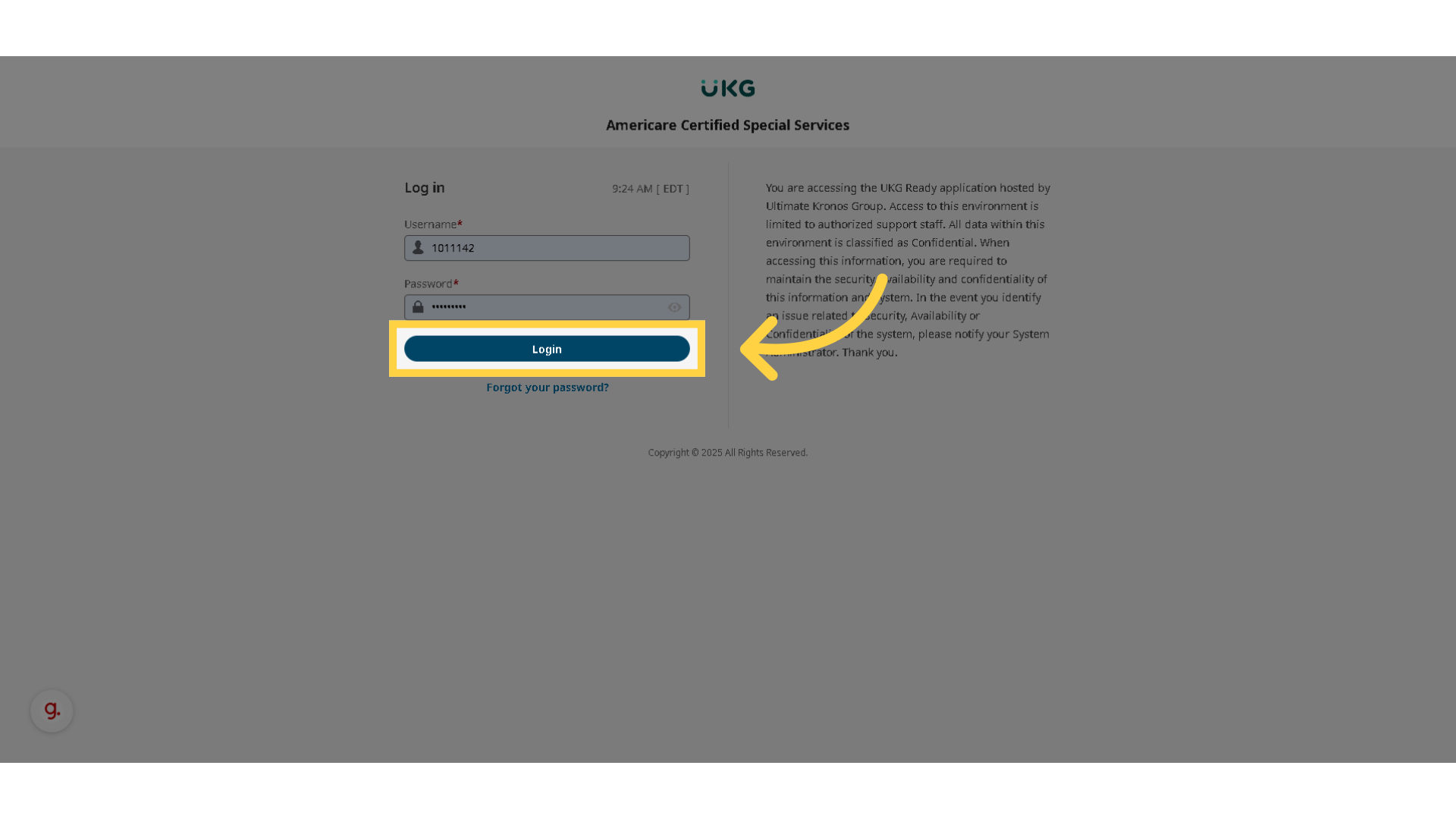
3. Click "My Time & Time Off"
Navigate to the My Time & Time Off section, where you can initiate your request and streamline the process of managing your time away from work.
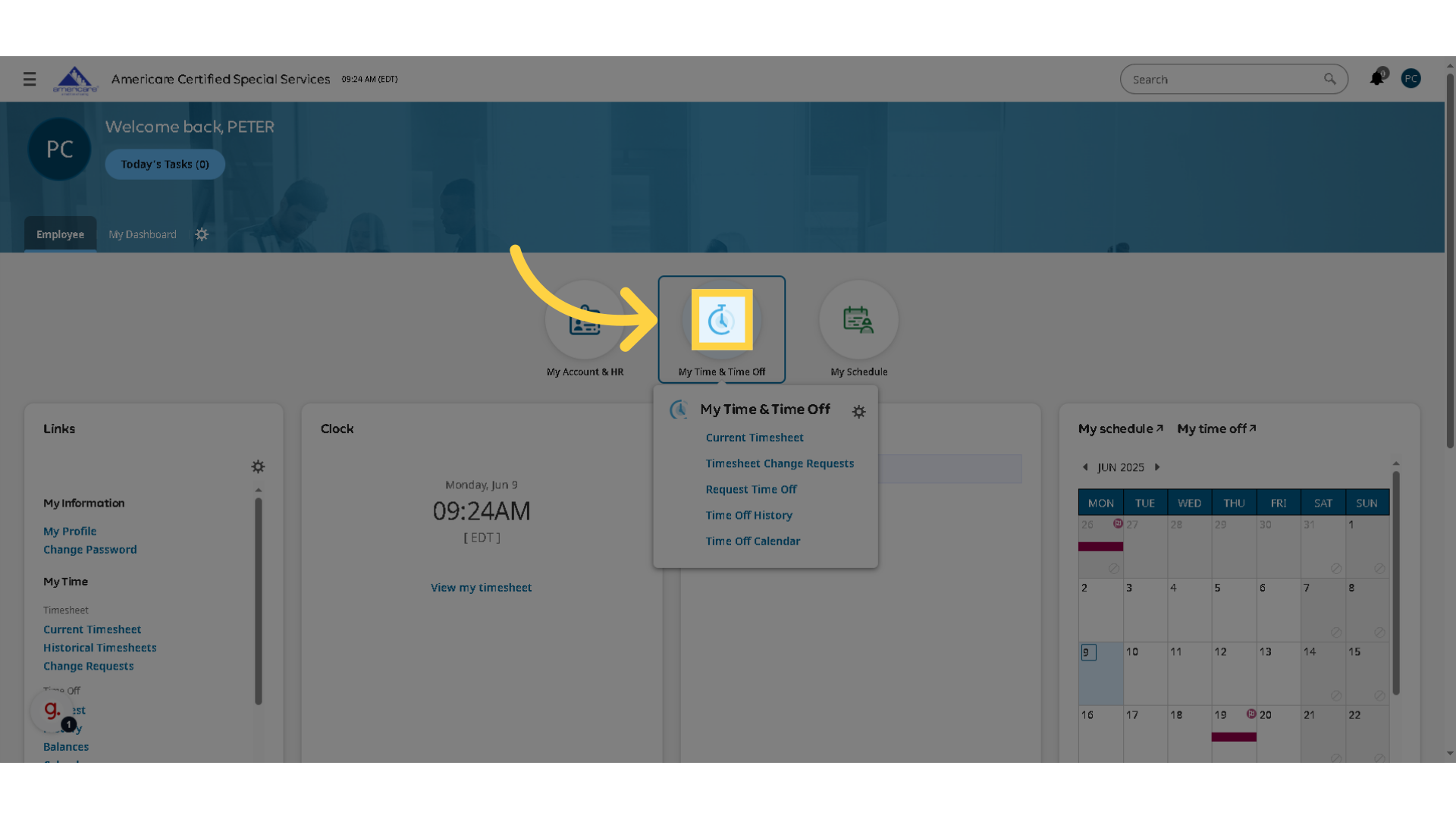
4. Click "Request Time Off"
Click the “Request Time Off” option, which is your gateway to planning and organizing your personal time effectively.
5. Click the "Time Off Type" drop down
Click the "Time Off Type" drop down, which allows you to detail your time-off needs and ensures clarity in your submission.
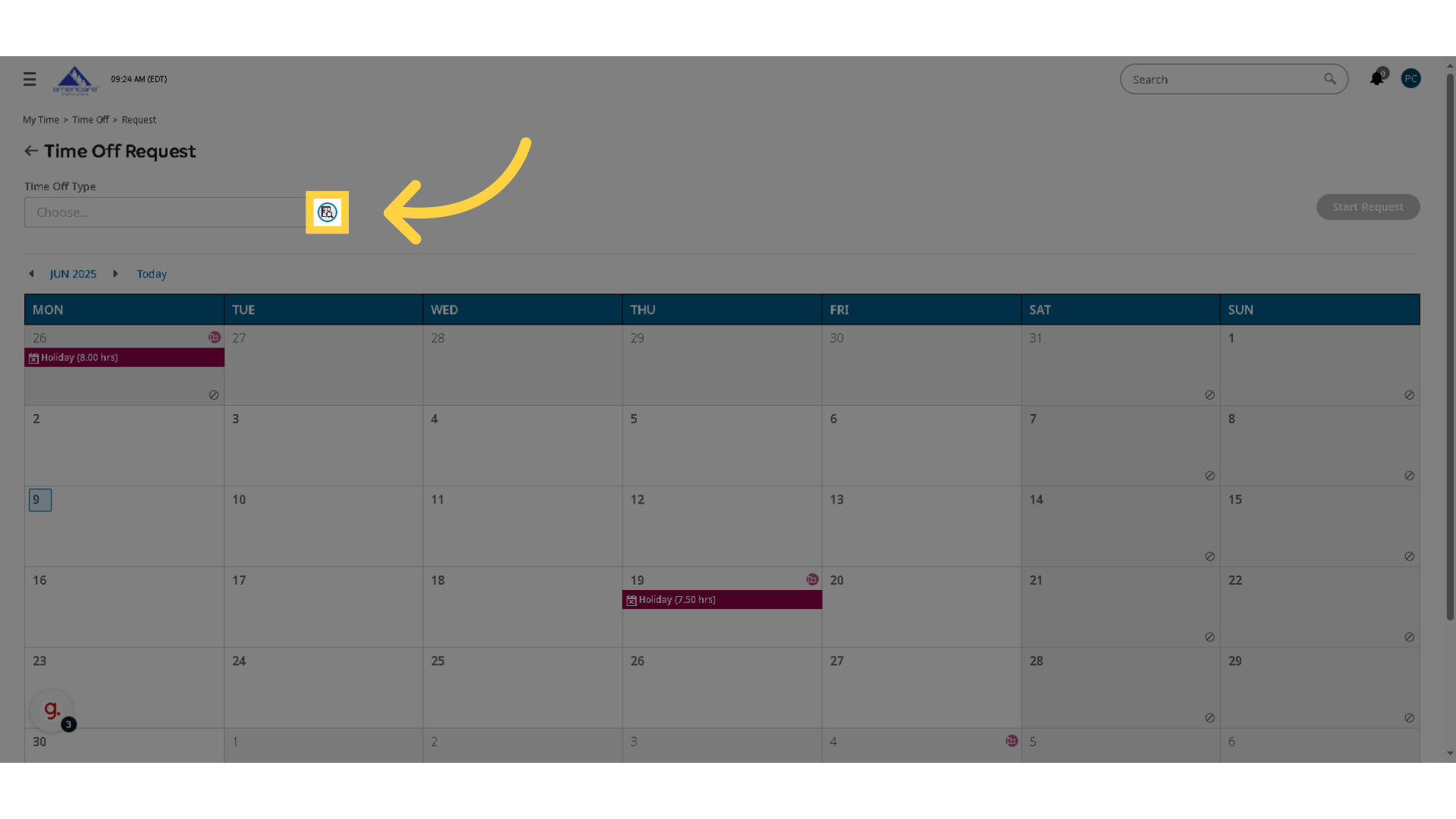
6. Select the type of PTO you are taking
Initiate the time-off request process by the type of time off applies to your request, setting the stage for a smooth approval process.
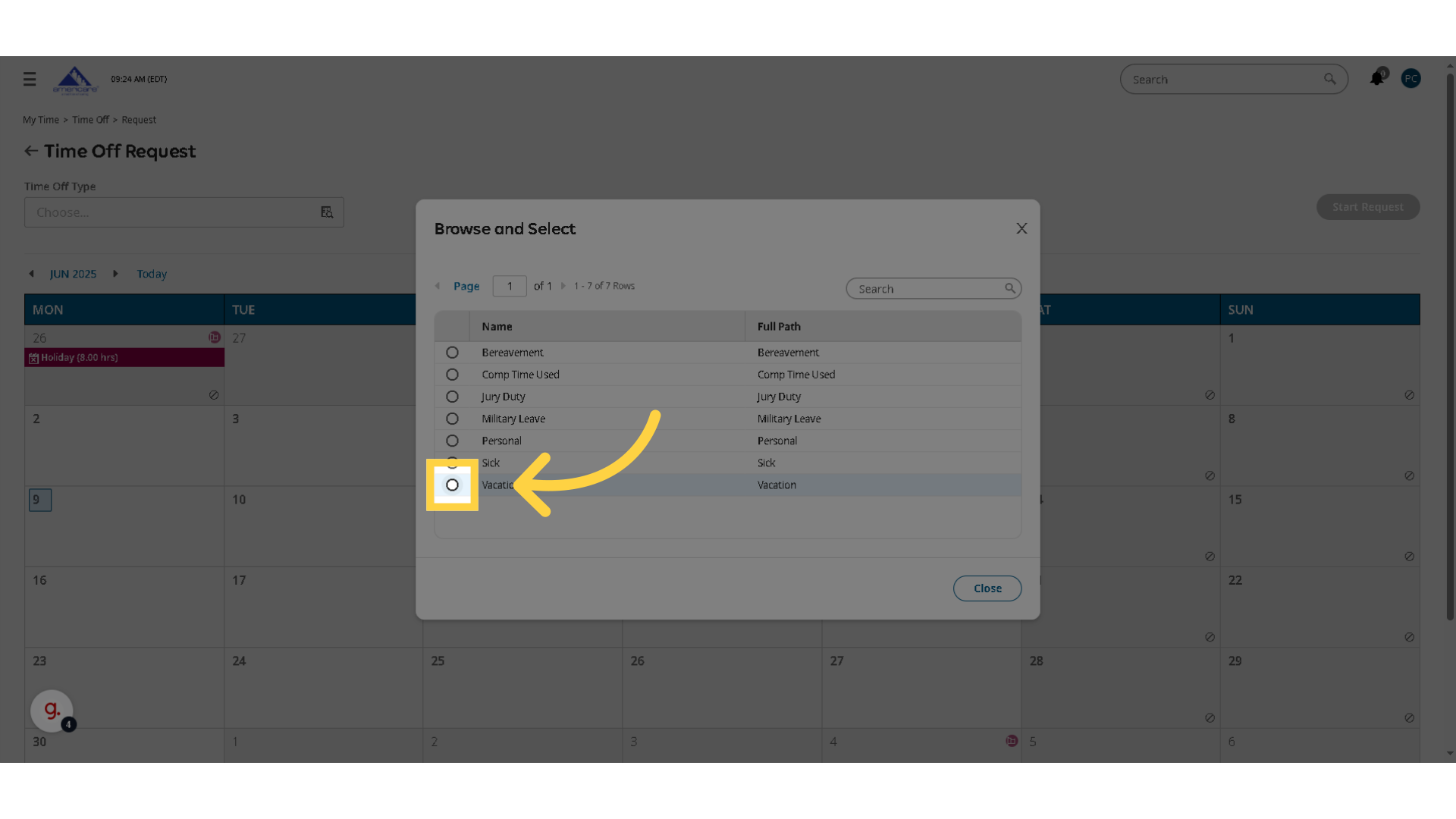
7. Click "Start Request"
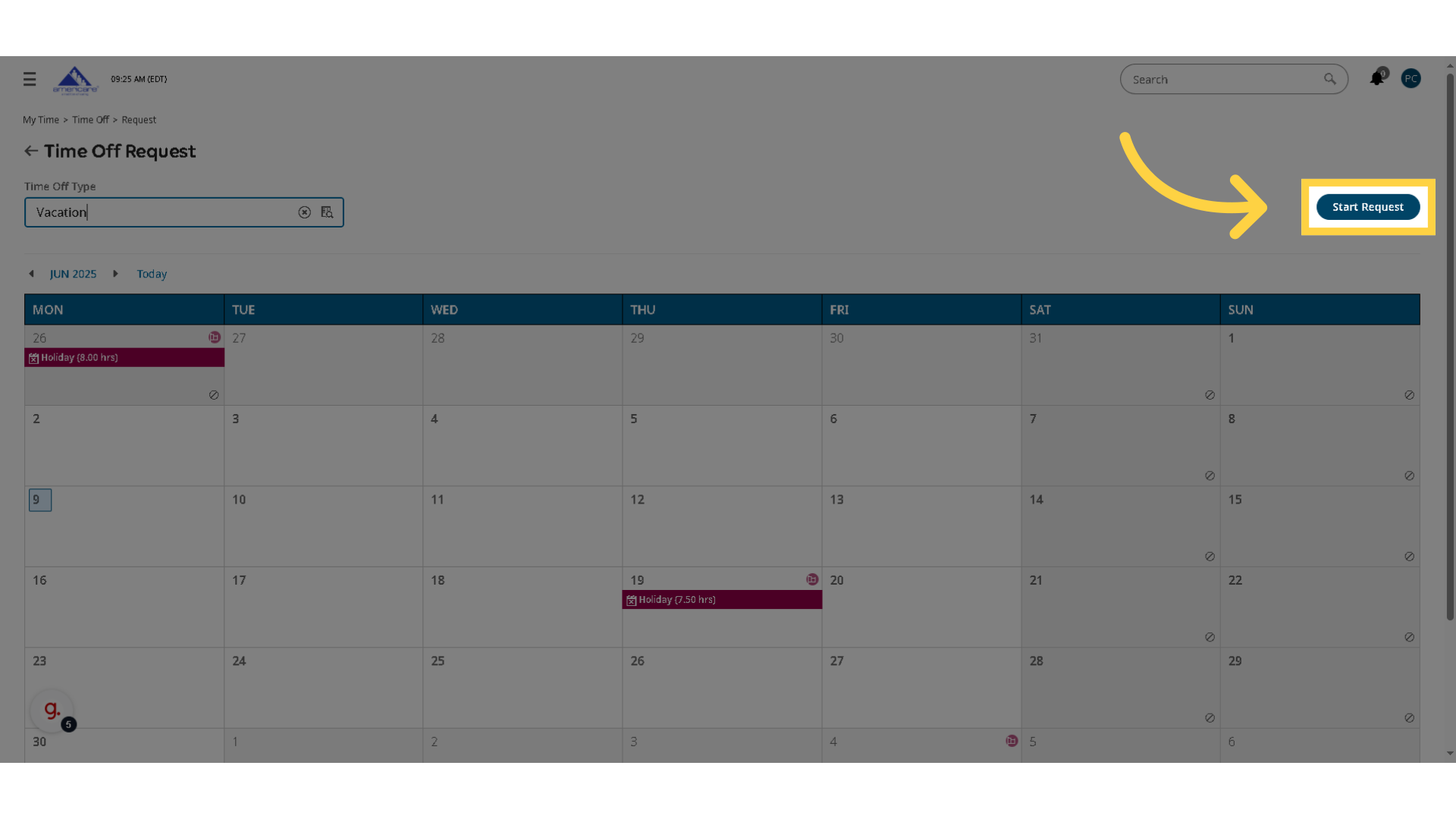
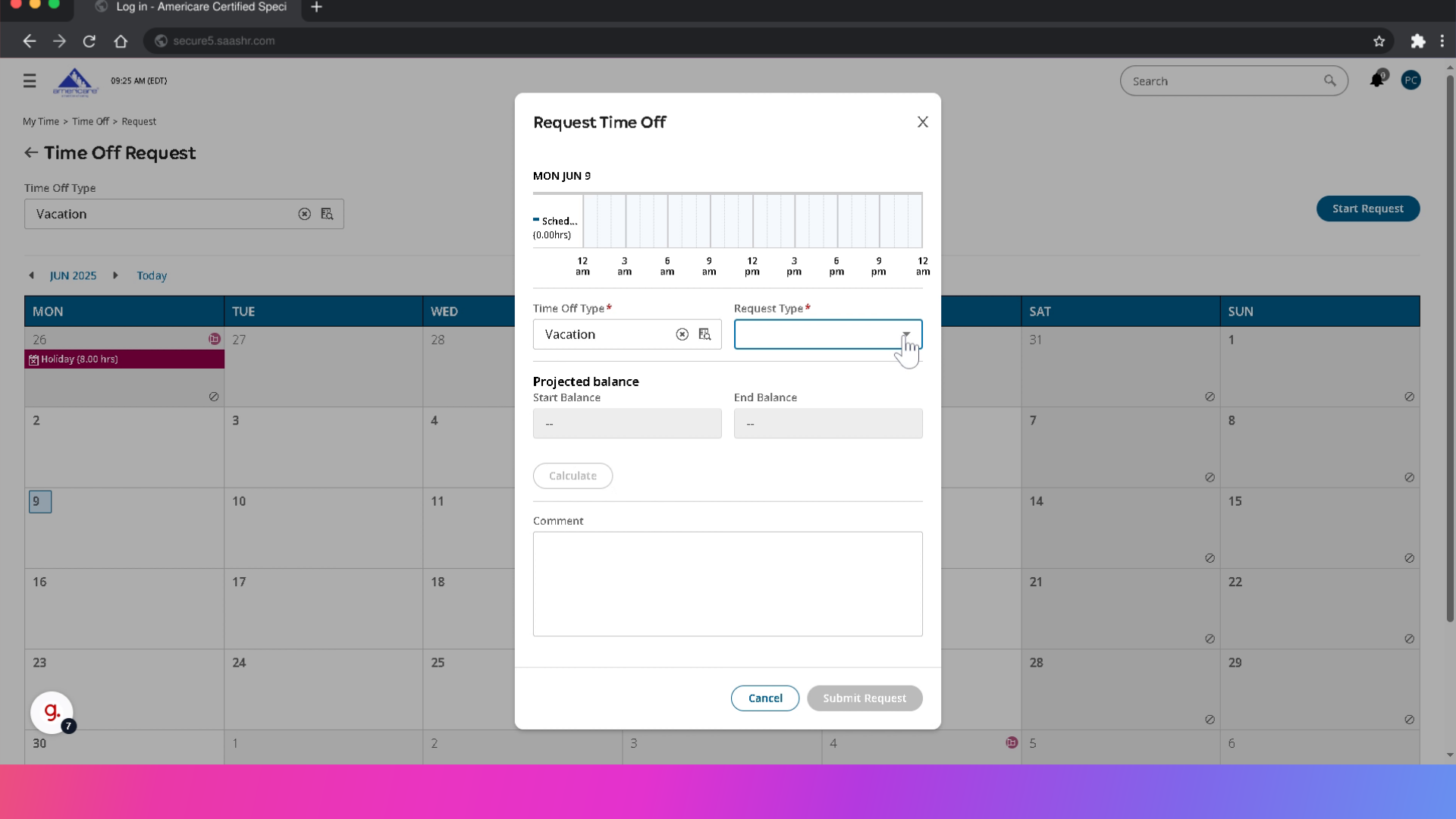
8. Click the "Request Type" drop down
Choose the type of time off you need, selecting from the "Request Type" that fits your specific situation and preferences.
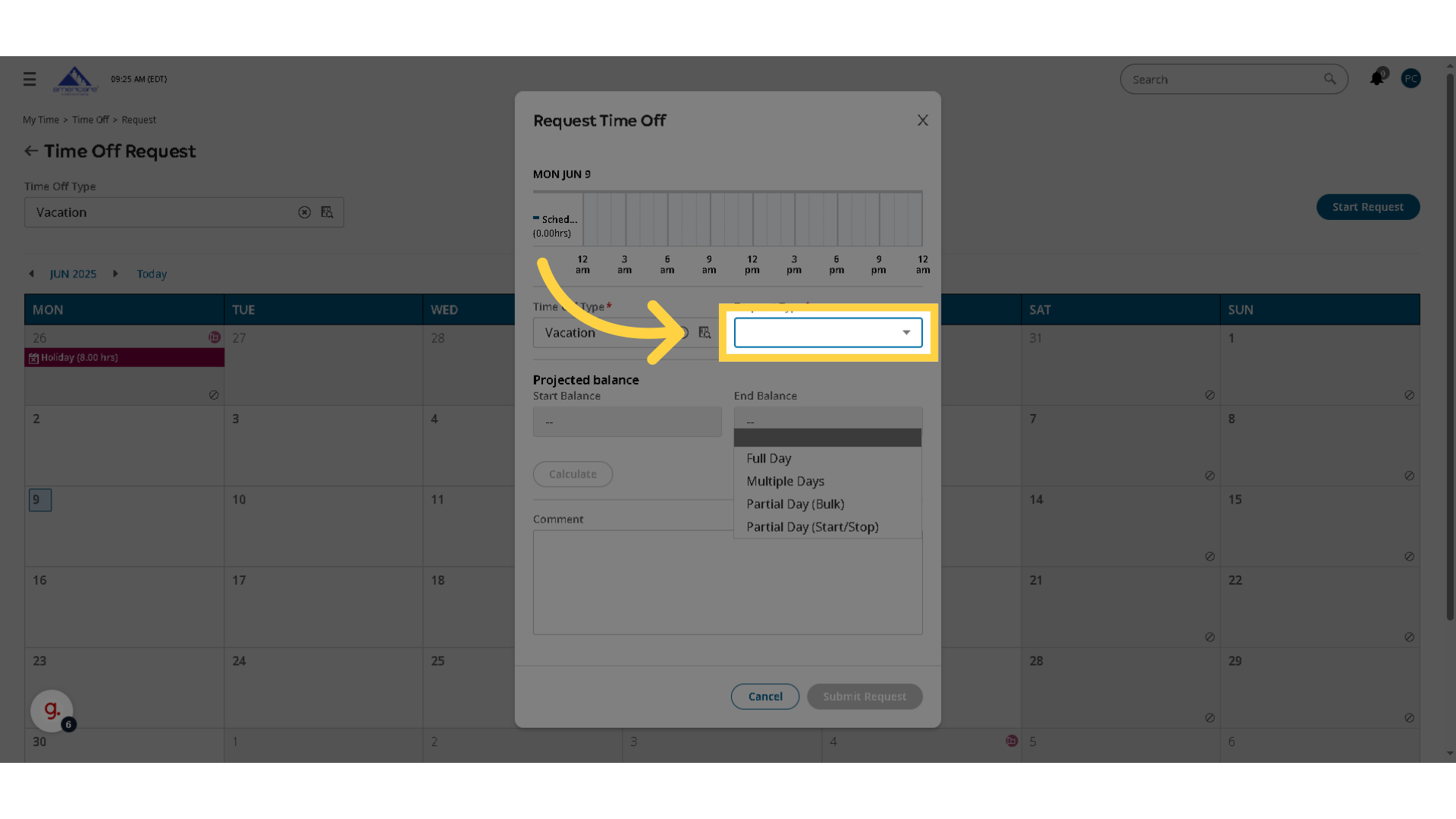
9. Select from the available options
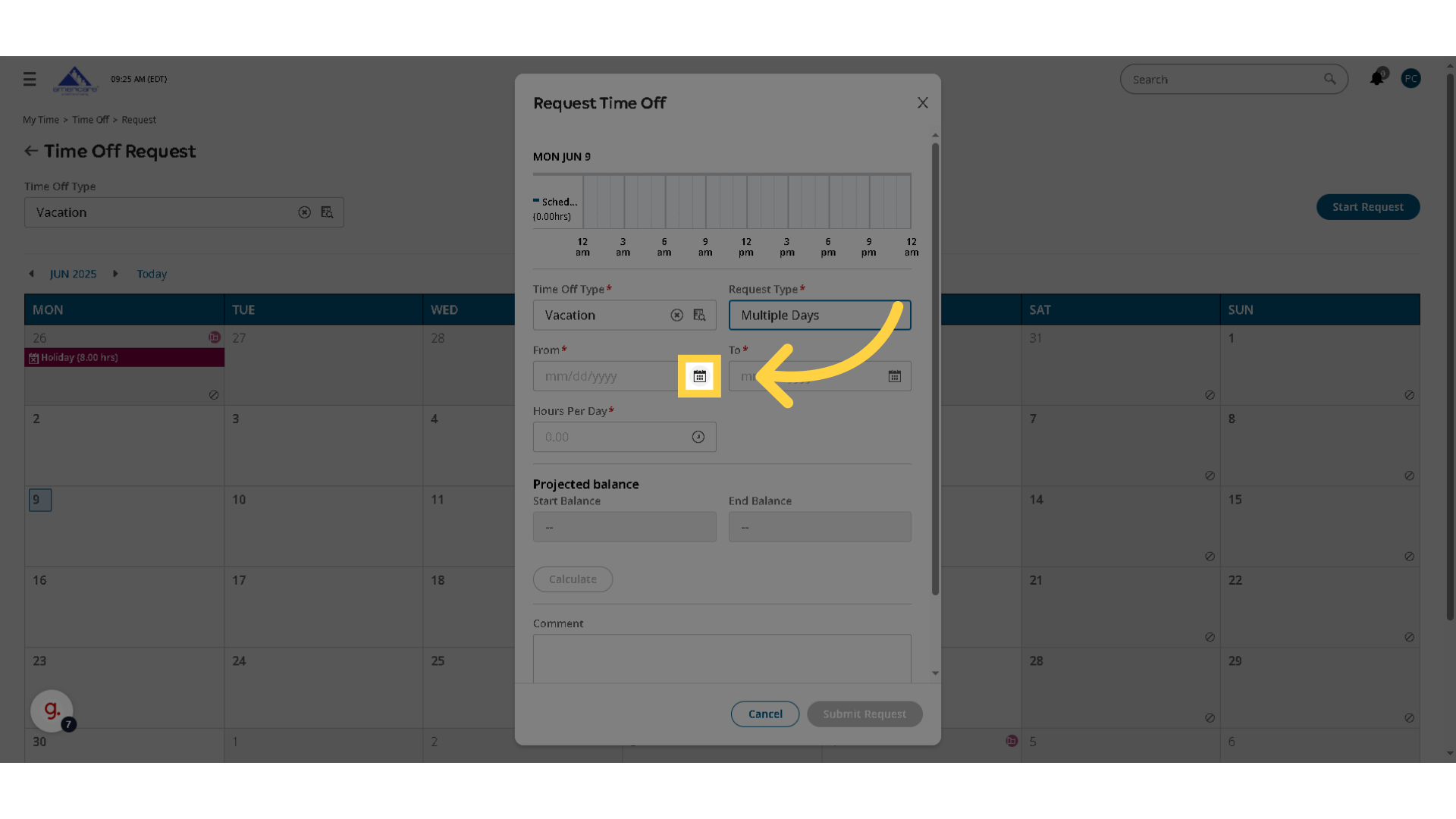
10. Click the "From" date drop down
Select the desired dates for your time off, ensuring your request aligns with your schedule and workload.
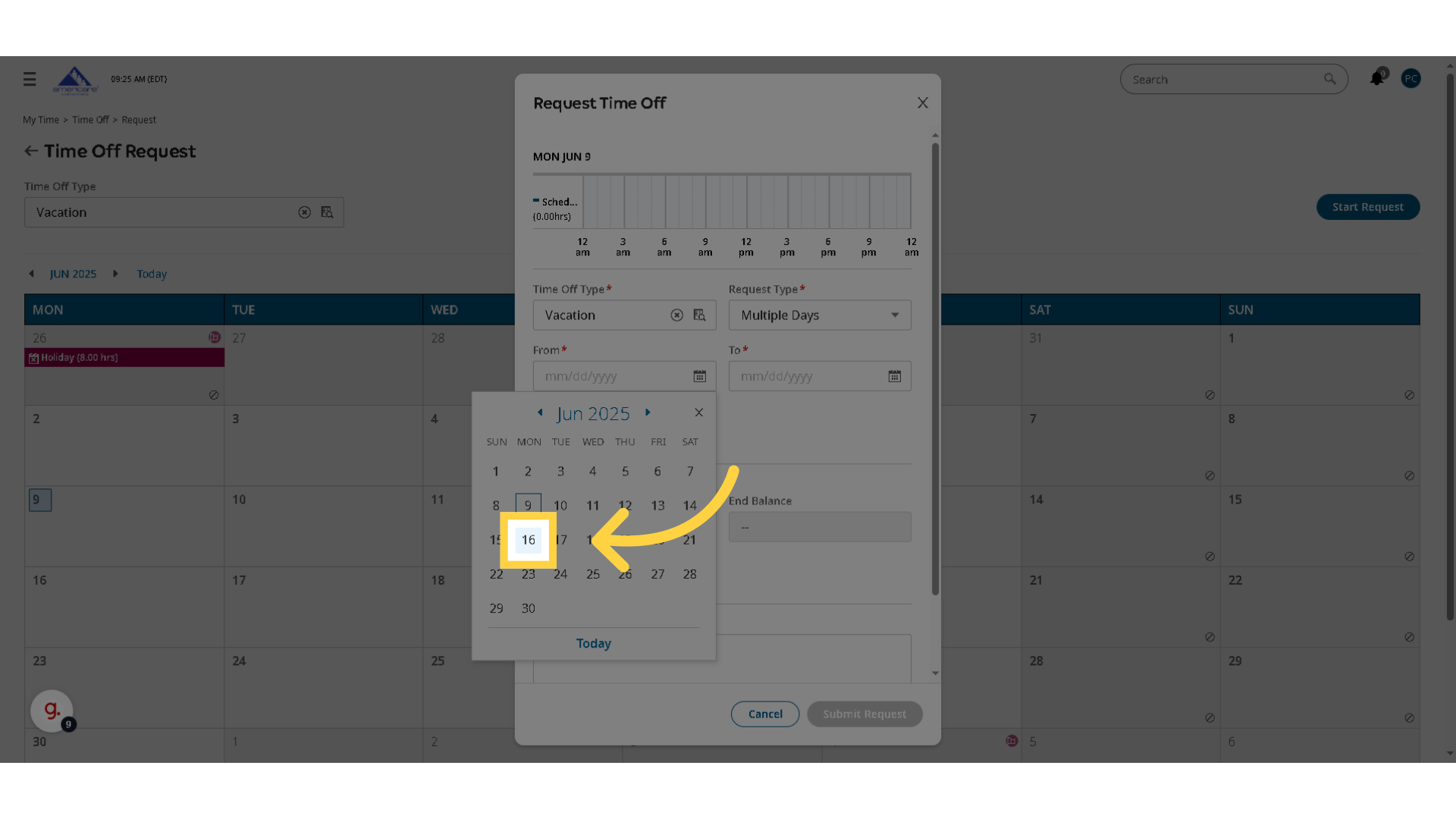
11. Click the first date of the time off request
Specify the start date for your time off, clearly indicating when you plan to begin your absence.
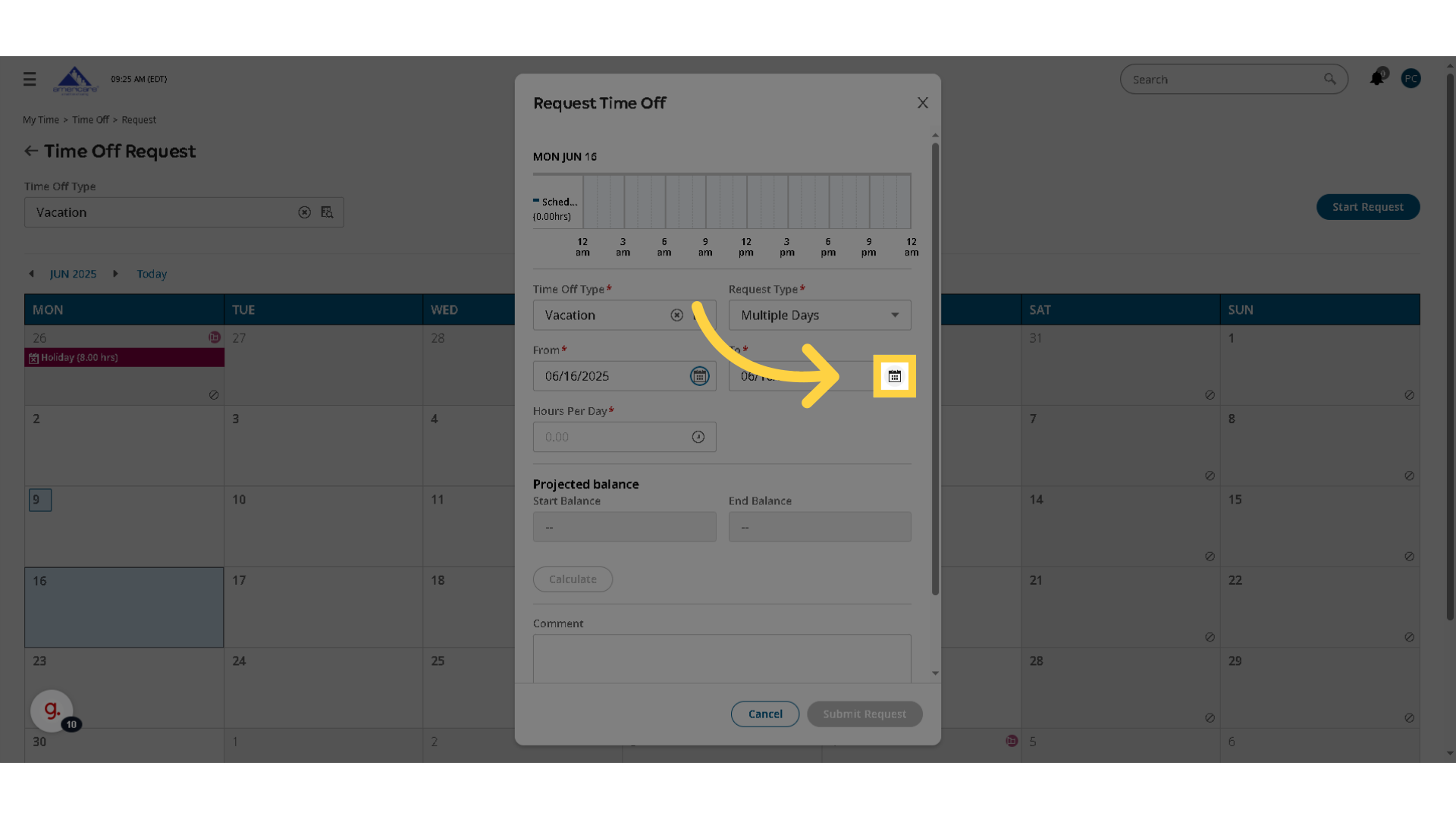
12. Click "To" date
Confirm your selection for the end date, which helps outline the duration of your requested leave.
13. Click the last date of the time off request
Finalize your selection for the end date, ensuring your request reflects your intended time away accurately.
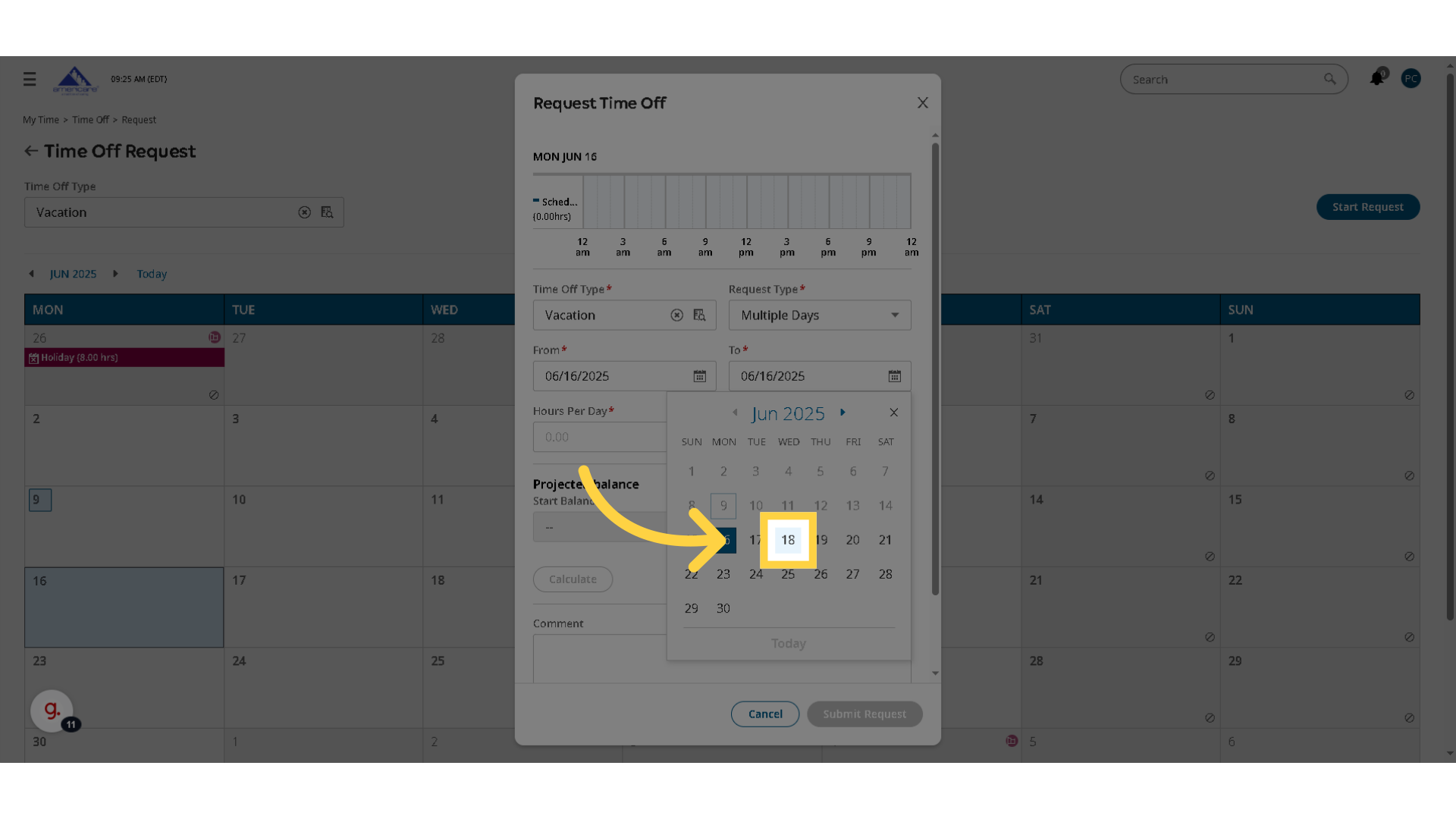
14. Click "Hours Per Day"
Indicate how many hours you wish to take each day, allowing for precise tracking of your leave balance.
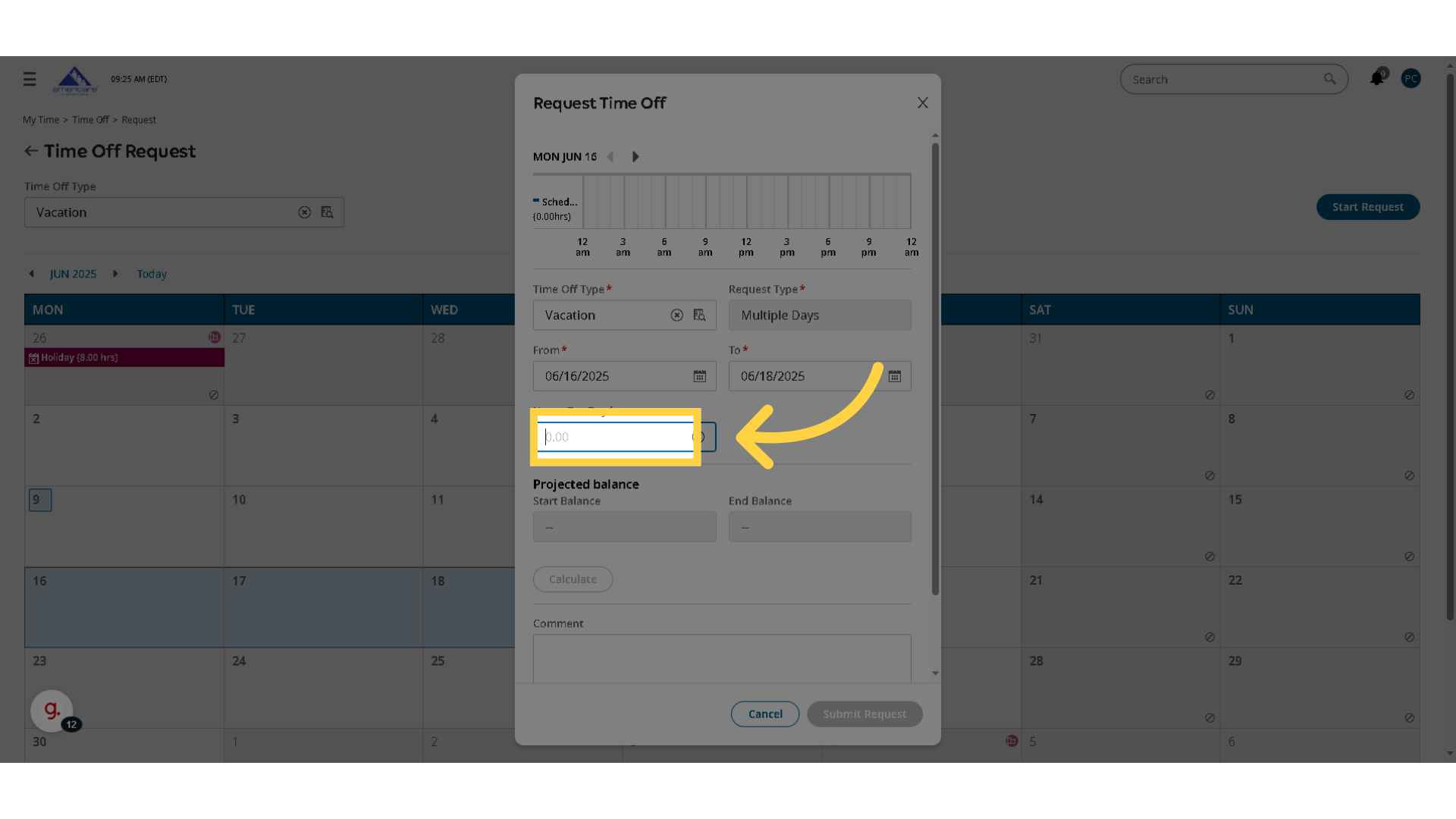
15. Enter the appropriate value
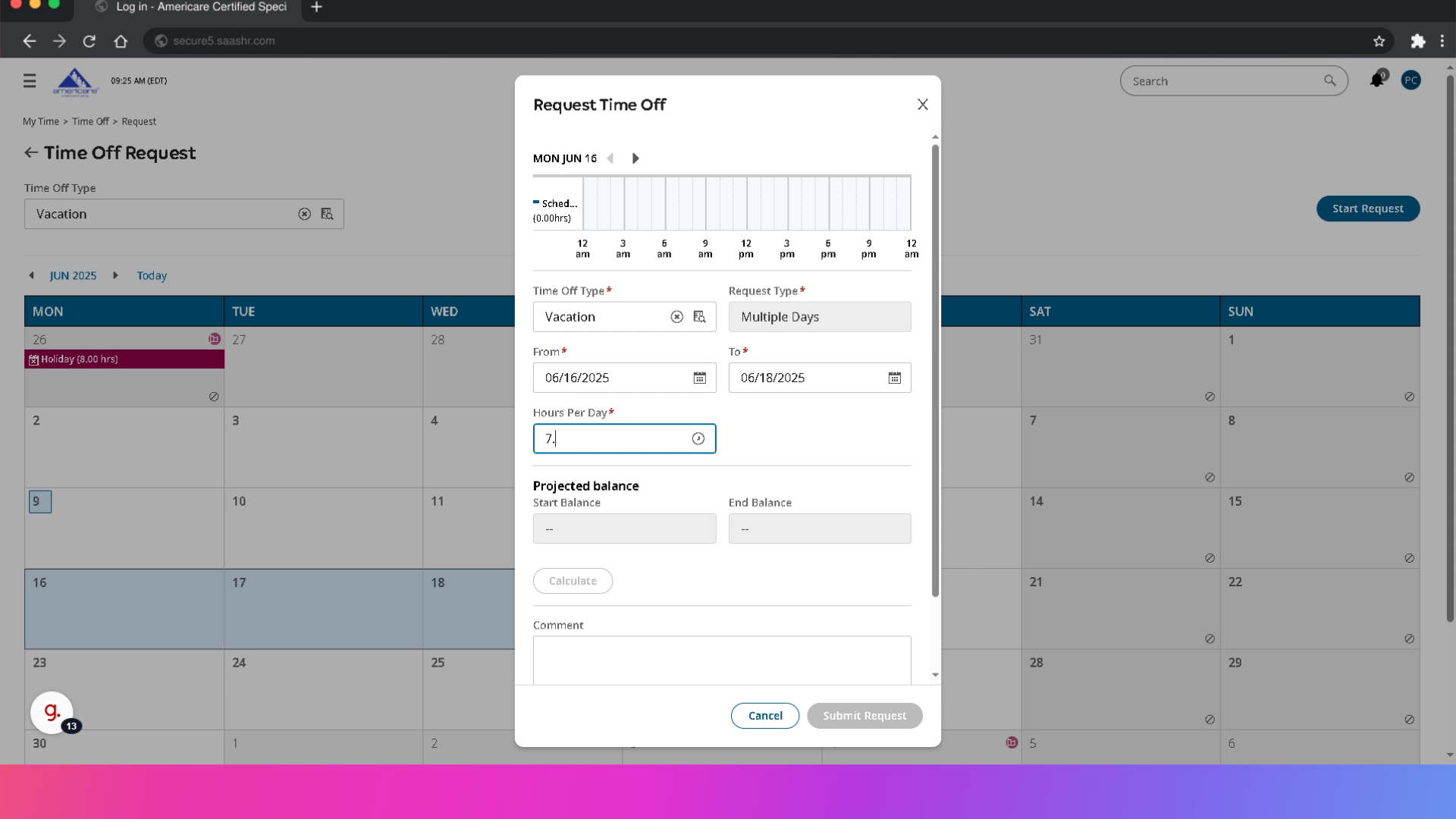
16. Click the "Calculate" button
Use the balance calculator to verify your available leave, ensuring you request only what you are entitled to.
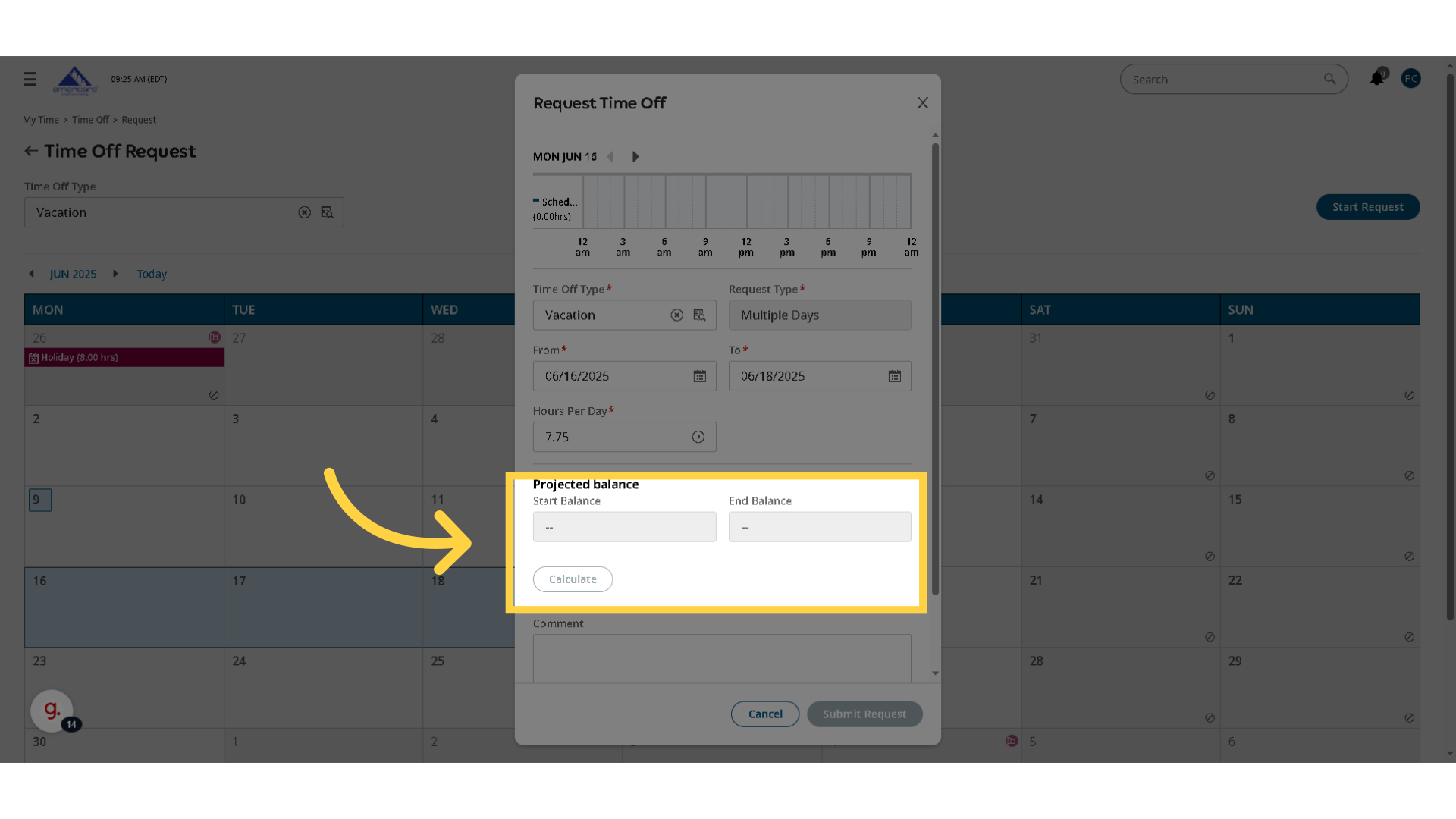
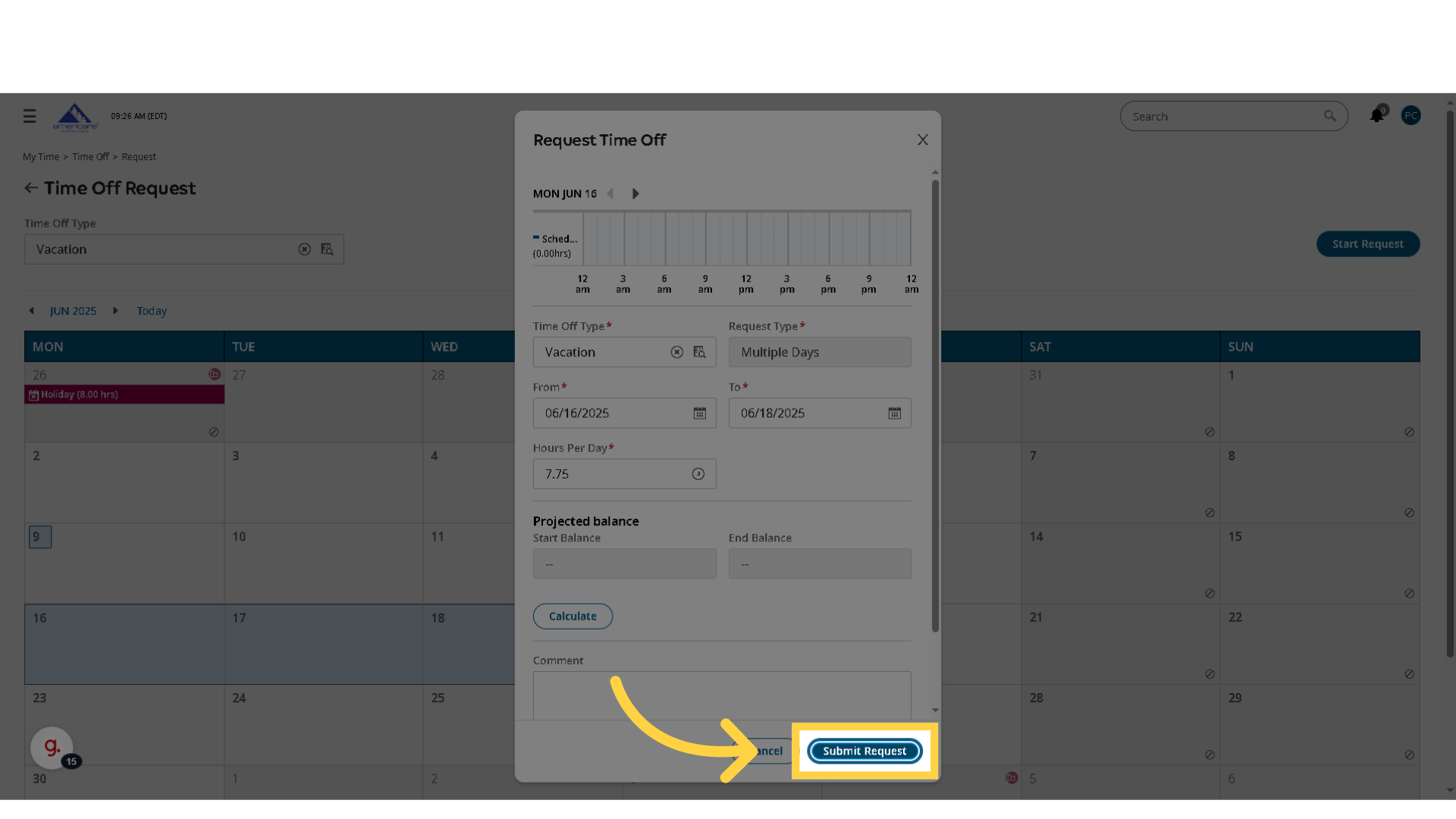
17. Click "Submit Request"
Lastly, enter any message about your request that you would like to send to your supervisor in the comment section. Submit your request, officially sending it for approval.
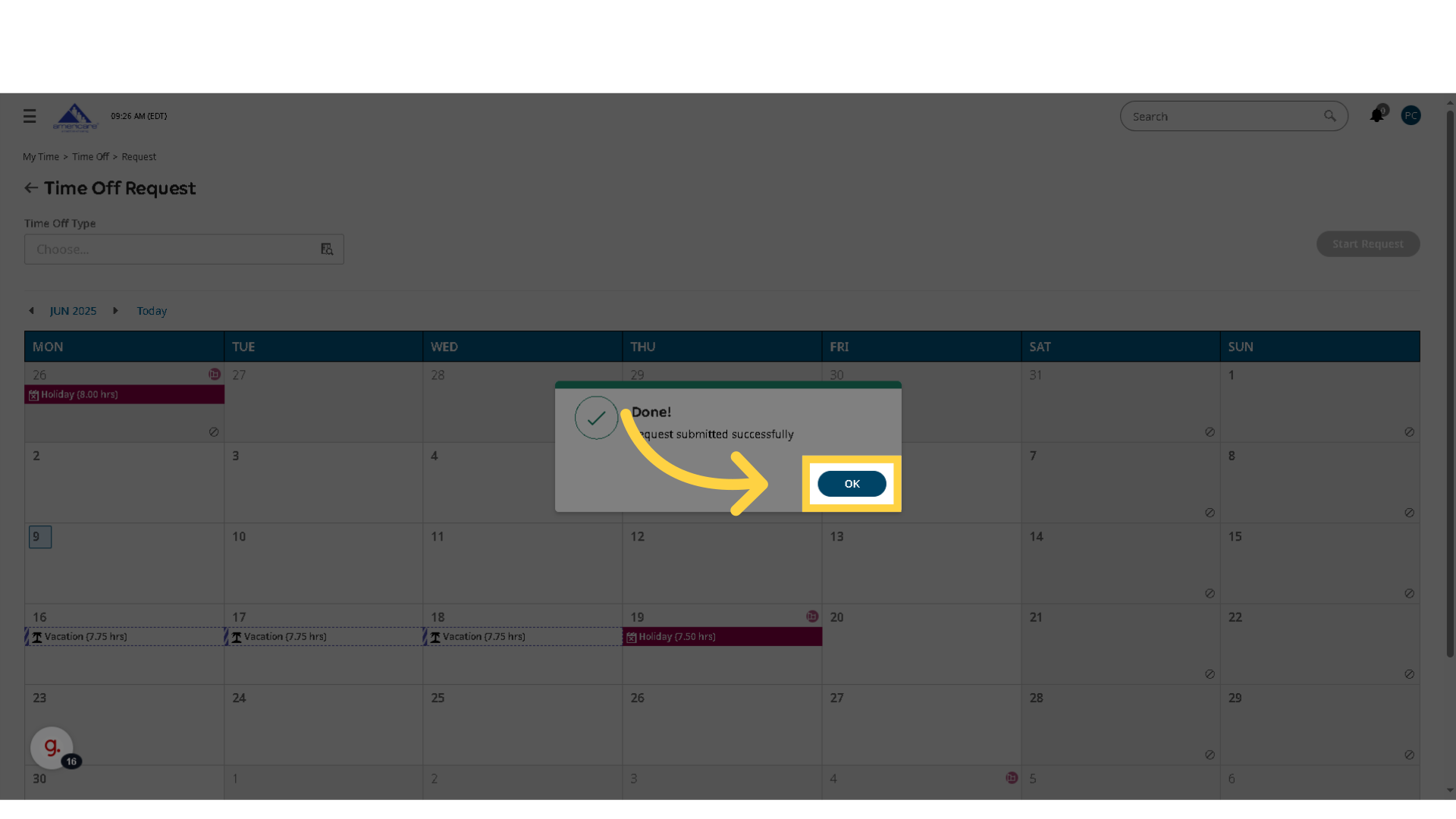
18. Click "OK"
Comments
0 comments
Please sign in to leave a comment.